
Create a favicon
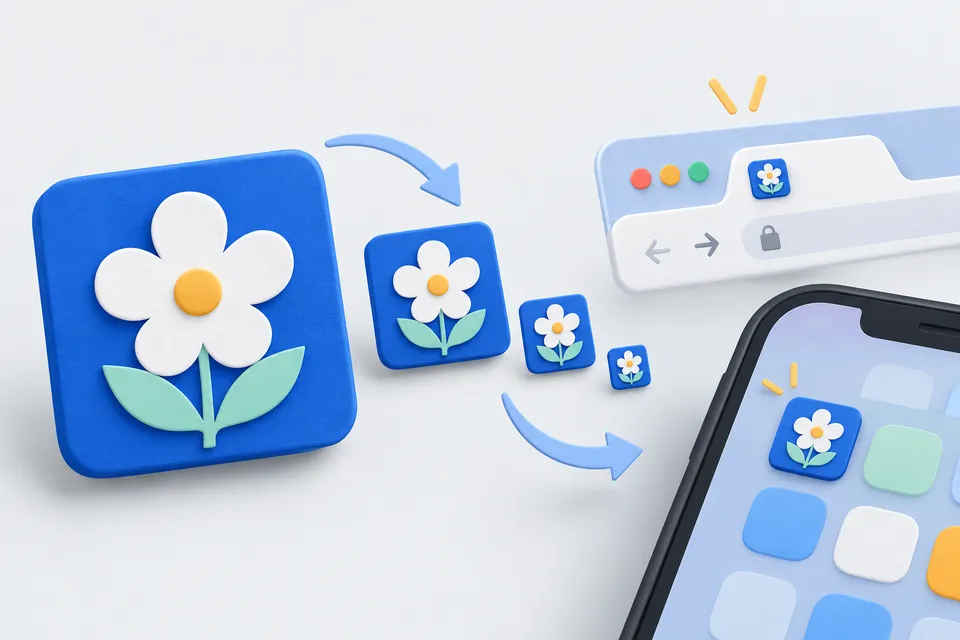
Select an image and get the icons a modern website needs, from the 16-pixel browser tab icon to the iPhone home screen icon, together with favicon.ico, a web app manifest and the embedding markup.
How it works
A motif for all symbol sizes
- Select image or logo
- Create symbol sizes
- Install Favicon package into the website
1. Choose an image
drag or click picture here
PNG, JPG or WebP. Ideally square and at least 512 pixels across.
The image is processed entirely in your browser and is never uploaded.
What matters
Favicons are often displayed at just 16 pixels. Fine lines, text and detailed logos become indistinct. A single symbol, clear shape and strong colours work best. The browser tab preview shows the actual size.
Place the files in your website's root directory, alongside robots.txt and sitemap.xml . Browsers may look for favicon.ico there automatically, but the markup in the <head>.
The Apple icon always receives an opaque background because iOS may otherwise display transparent areas as black.
Your image stays on your computer. All sizes are generated in the browser, without sending anything to a server.
Why one image is not enough
Favicons are needed at several sizes: 16 pixels in tabs, 32 for bookmarks, 180 for iPhone home screens, and 192 and 512 for Android and web app manifests. Letting the browser downscale a detailed logo can produce a blur at 16 pixels.
This tool generates each size separately, together with favicon.ico containing several resolutions. Older browsers and some search engines request this root-level file directly without checking the markup.
What constitutes a good motive
At 16 pixels, one clear shape works better than text. Thin lines disappear; solid shapes with strong contrast remain recognisable. Leave around ten percent padding to avoid clipping in round tiles.
Dark mode also matters. A black logo on a transparent background can disappear in a dark tab. Choose colours visible on both backgrounds or include a background.
Other tools
From ‘Images and icons” and related categories. Free, with no sign-up.
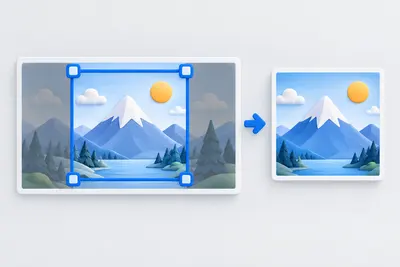
Crop an image
Choose a crop freely or with a fixed aspect ratio. Keyboard controls are supported.
Open tool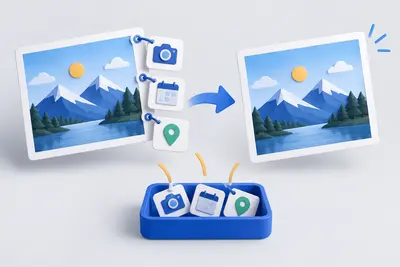
View and remove EXIF metadata
View camera, date and location metadata, then remove it without losing image quality.
Open tool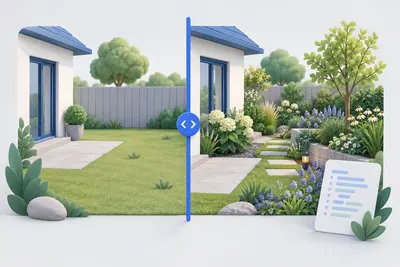
Before-and-after slider
Compare two images with a slider and get ready-to-use code without a third-party library.
Open tool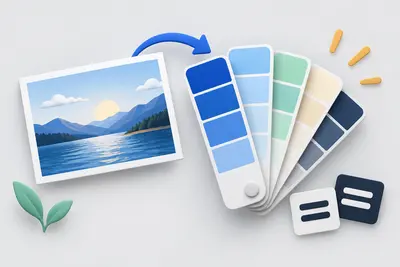
Create a colour palette
Create colour harmonies and shades, extract colours from an image and check contrast against WCAG.
Open tool
Google review link
Link directly to the review form, with a QR code for displays and invoices.
Open tool
Joomla template generator
Customise 62 templates by industry and layout, adjust colours and module positions, and download a ready-to-install ZIP for Joomla 4 and 5.
Open tool