
View and remove EXIF metadata
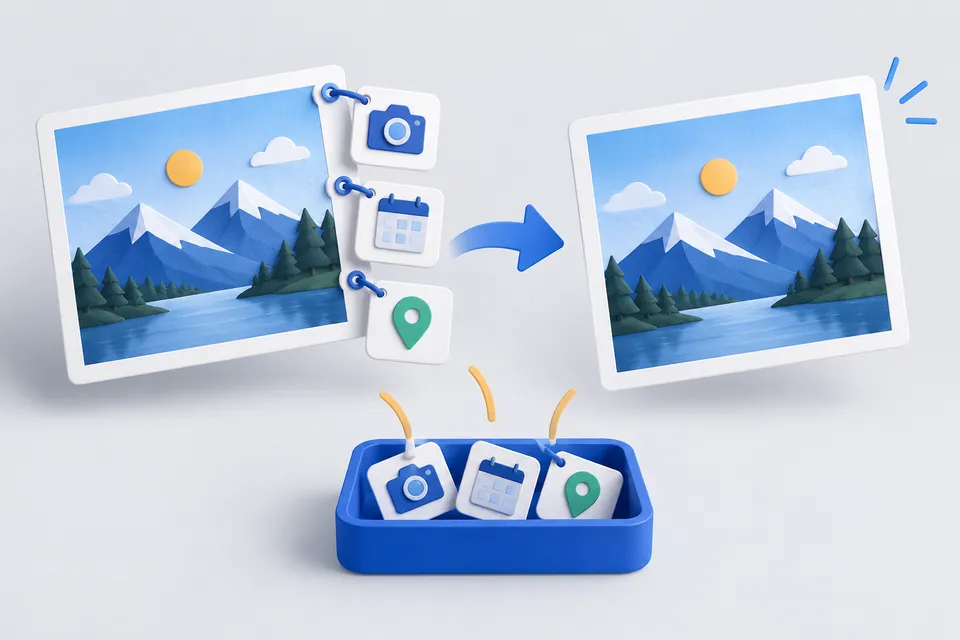
Photos contain more than you see: camera model, capture date, serial number and often the precise location. Inspect that information here and remove it.
How it works
Keep the photo, remove metadata
- Select JPEG Photo
- View stored metadata
- Download cleaned photo
drag or click picture here
JPEG or PNG. The file stays on your computer and is never uploaded.
Why this matters
A photo taken at home may contain coordinates accurate to a few metres. Uploading it can expose your address without you realising. This is especially relevant for photos of children, private events or consulting rooms.
Some platforms automatically remove this data when you upload; others do not. On your own website, nobody does it for you.
Lossless removal, without recompression
Drawing an image to a canvas and saving it again removes metadata but recompresses the image. Each lossy pass permanently removes image information.
This tool removes metadata sections directly from the file and leaves image data untouched. In a test image, the pixels were identical afterwards, with a file 210 bytes smaller.
Colour profile
An embedded ICC profile reveals no personal or location information, but controls colour rendering. Removing it may alter colours, so it is retained by default.
Related: images Cut to size , Scaling or in Converting WebP . Conversion also removes metadata.
What's in the metadata
Camera model and capture time are often harmless. GPS coordinates are more sensitive: a phone photo from your balcony may disclose your address to within five metres. Edited files can also contain the computer name, software and licensee details, or a thumbnail showing the uncropped original.
Major platforms often remove metadata on upload. Your own website normally serves the uploaded file unchanged, making it especially useful to inspect it first.
What is removed — and what remains
EXIF, IPTC and XMP blocks are removed. Image pixels remain unchanged, without recompression or quality loss. Removing the colour profile may affect rendering, and removing orientation can make a photo appear sideways. Inspect these fields before removal; retain the colour profile if required.
Other tools
From ‘Images and icons” and related categories. Free, with no sign-up.
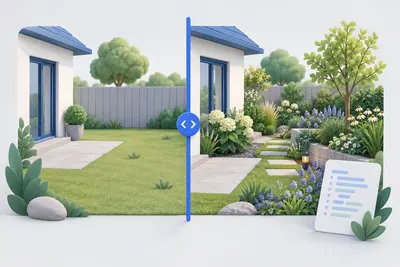
Before-and-after slider
Compare two images with a slider and get ready-to-use code without a third-party library.
Open tool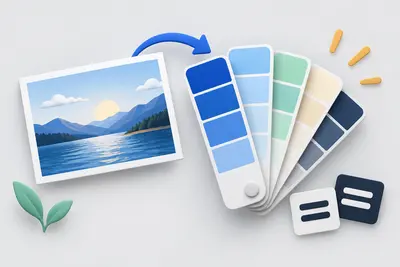
Create a colour palette
Create colour harmonies and shades, extract colours from an image and check contrast against WCAG.
Open tool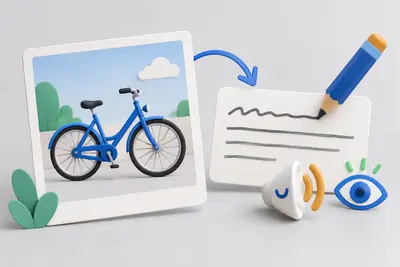
Write alt text
Choose an image type, check your description and copy the finished markup.
Open tool
Create a QR code
Create sixteen QR content types with your logo and colours, as PNG, SVG or print-ready PDF.
Open tool
Format JSON
Validate, format or minify JSON, with the line, column and exact error location.
Open tool
Create a legal notice
Select a legal form and enter your details to create a German legal notice under section 5 DDG.
Open tool