
Create a Google review link
Open the star-rating dialog directly, without making customers search for your business first. Includes a matching QR code.
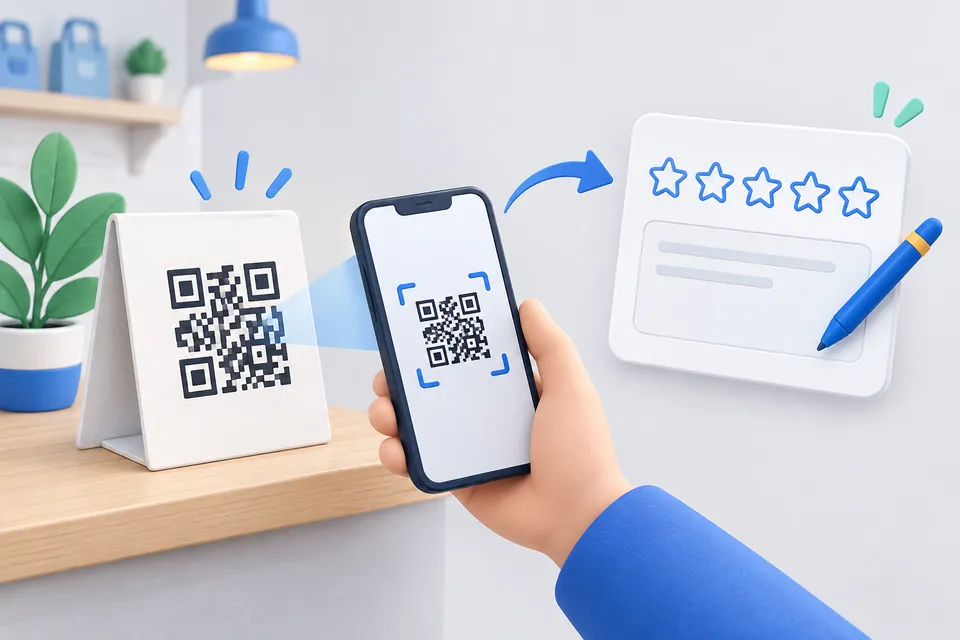
How it works
Shortening the path to evaluation
- Enter the company’s Place ID
- Creating an evaluation link
- Provide a link or QR code
Place ID
The unique identifier of your entry GoogleIt doesn't change, even if you rename the profile.
Finding about Googles Place ID Finder – Enter the company name there, the identifier appears under the card point.
Finding the Place ID
Open Google's Place ID Finder, enter your business name and select the map result. The identifier appears below and looks like this: ChIJN1t_tDeuEmsRUsoyG83frY4.
This browser tool cannot extract a Place ID from a Maps short link because cross-origin restrictions prevent resolving the redirect. Open the link yourself and inspect the expanded address.
Finally, check the second link. If your business appears, the identifier is correct. A two-minute check can prevent printing an incorrect QR display.
Why use the Place ID?
Short links from the company profile ()g.page/r/...) also work, but depend on the profile name and may break after a rename. Place IDs are more durable for printed invoices and displays because they stay the same.
What is allowed
You may actively ask for reviews, including with QR codes and displays. You must not Buy or Reward: discounts, vouchers or competitions in exchange for ratings violate Google's policies and may constitute unfair advertising.
Do not ask only satisfied customers while excluding dissatisfied ones. Google calls this “review gating”. Ask everyone or no one.
For a printed display, use the QR generator with custom colours and higher error correction to withstand fingerprints and stains.
Other tools
From ‘Sharing and promotion” and related categories. Free, with no sign-up.
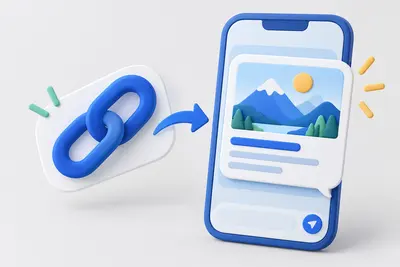
Create Open Graph tags
Create preview images and text for WhatsApp, Facebook and LinkedIn, with a preview for each network.
Open tool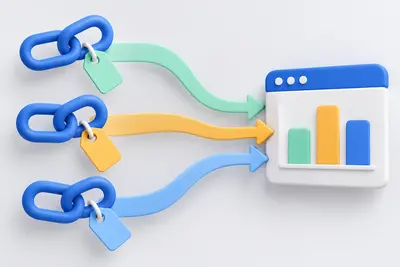
Create UTM links
Track campaigns and catch mistakes before they appear in your reports.
Open tool
Format CSS
Make minified CSS readable again, or minify it for delivery.
Open tool
Create a legal notice
Select a legal form and enter your details to create a German legal notice under section 5 DDG.
Open tool
Test robots.txt
Paste rules and enter URLs to see which pages are blocked and which rule applies.
Open tool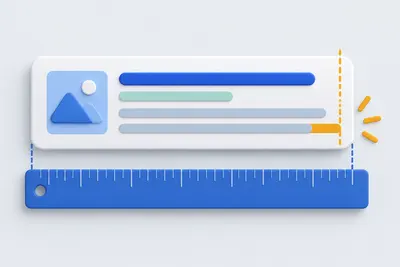
SERP preview
Preview your title and description as Google displays them, measured in pixels rather than characters.
Open tool