
Crop an image
Drag the crop, choose an aspect ratio and download. Cropping always uses the original image; the preview is not a reduced source file.
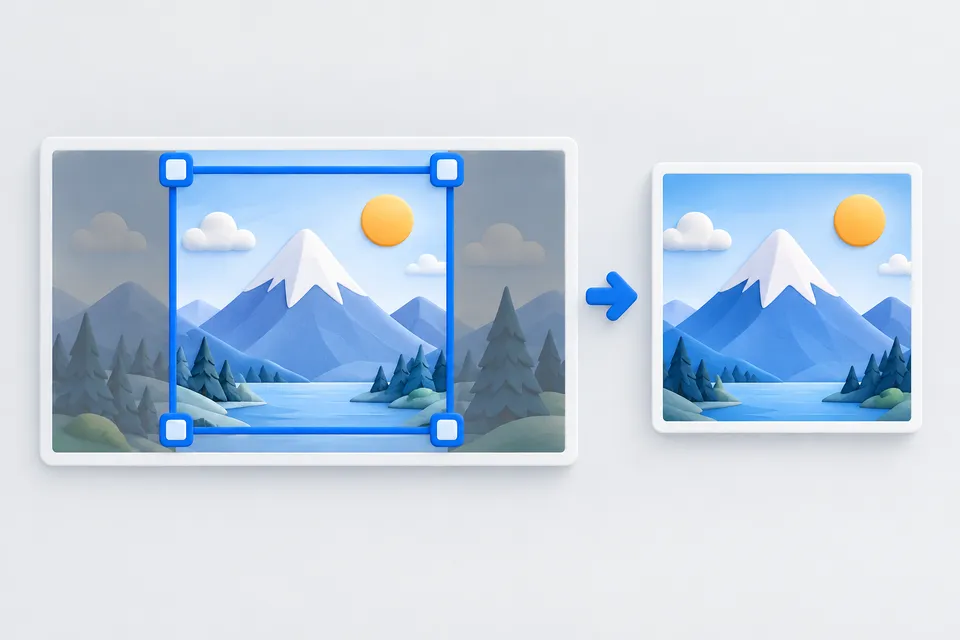
How it works
Selecting the important image section
- Select the image
- Determine the detail and aspect ratio
- Download cropped image
drag or click picture here
Everything stays on your computer.
Aspect ratios
1:1 for profile pictures and tiles, 16:9 for video previews, 1200 × 630 for sharing previews — the dimensions expected by Facebook, LinkedIn and WhatsApp. Some services do not display smaller images.
Two things to keep in mind
Cropping recompresses the image. A crop is a new image, so recompression is unavoidable. Work from the original: every additional pass through a lossy format removes information.
Metadata is missing. The new crop does not retain EXIF metadata. That helps protect location data. To inspect it first, use the EXIF viewers .
Without a mouse
Use Tab to focus the bottom-right handle, then move it with the arrow keys. Hold Shift for larger steps. This makes cropping accessible without a mouse.
If you want to change dimensions rather than framing, the Image resizer is the more direct option.
Which aspect ratio for which purpose?
Social sharing previews typically use 1200 × 630 pixels, roughly 1.91:1. Square images may be cropped unpredictably on Facebook and LinkedIn. Shop product pictures are usually square, blog images often 16:9, and team portraits 4:5.
The most common mistake is cropping faces too tightly. A generous composition can look cramped in a small tile. Leave some extra space: you can crop it later, but cannot add it back.
Cut rather than scale
Serving a 4,000-pixel image at a displayed width of 400 pixels wastes loading time. Cropping removes areas nobody sees; resizing reduces the dimensions. For a clear subject, use both: choose the crop first, then resize to the required dimensions.
Other tools
From ‘Images and icons” and related categories. Free, with no sign-up.
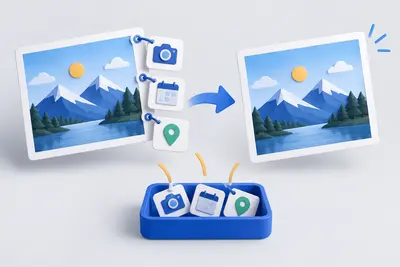
View and remove EXIF metadata
View camera, date and location metadata, then remove it without losing image quality.
Open tool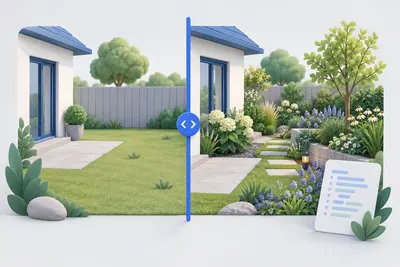
Before-and-after slider
Compare two images with a slider and get ready-to-use code without a third-party library.
Open tool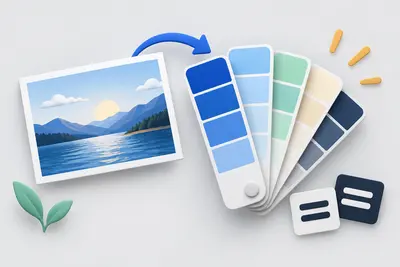
Create a colour palette
Create colour harmonies and shades, extract colours from an image and check contrast against WCAG.
Open tool
Write alt text
Choose an image type, check your description and copy the finished markup.
Open tool
Joomla template generator
Customise 62 templates by industry and layout, adjust colours and module positions, and download a ready-to-install ZIP for Joomla 4 and 5.
Open tool
Format CSS
Make minified CSS readable again, or minify it for delivery.
Open tool