
Write alt text
Good alternative text starts with understanding the image's purpose. That decision changes both the wording and the correct markup.
How it works
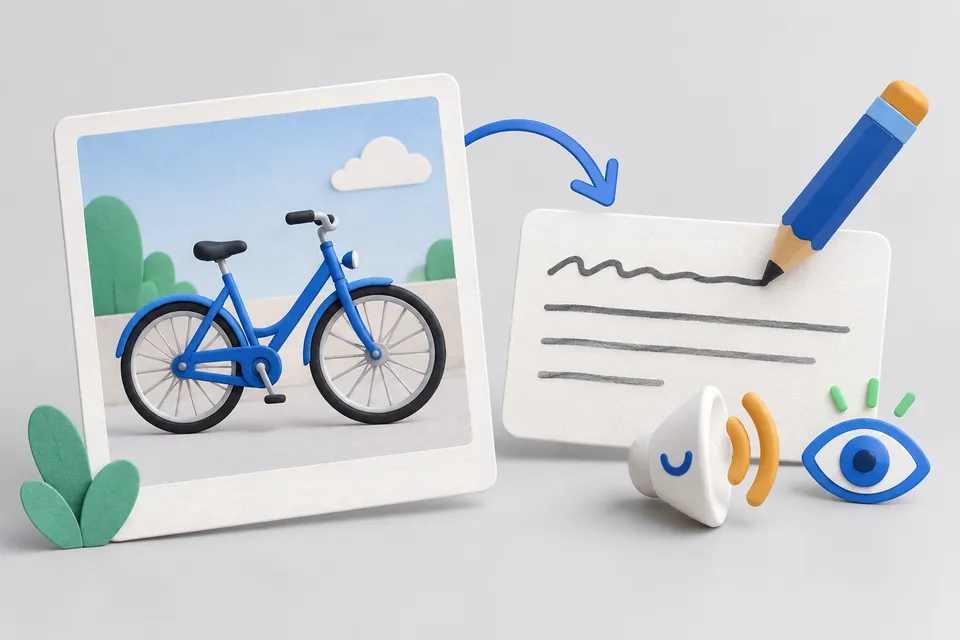
Make image content accessible with words
- Determining image type
- Formulate the description yourself and check it
- Applying a suitable image markup
What is the image’s purpose?
This question is where most alternative text goes wrong, before you even start writing.
It shows something important
Describe what you see -- and that's what matters at this point, not every detail, but the statement.
Example: Workshop master repairs the gearshift of a road bike
Visible to everyone; alternative text is read by screen readers.
- No text has yet been entered.
<img src="image.jpg" alt="" width="" height="">
The dimensions in width and Height are intentionally blank. Enter the actual pixel dimensions to avoid layout shifts when the image loads.
What this tool does not do
It does not describe your image for you. That would require sending it to an image recognition service. Here, nothing leaves your computer. Generic descriptions such as “An image with a blue background” would not help anyway.
Instead, it guides you through the important decision and checks the text you have written.
The most common mistake
An Omitted attribute on a decorative image. Leaving it out makes screen readers announce the filename. A simple divider becomes “i-m-g-underscore-2-0-2-6-zero-three-dot-j-p-g”. The correct approach is an explicitly empty alt="".
Alt text or caption?
Everyone can see the caption; alternative text is used by screen readers and search engines. They can complement each other, but repeating the same sentence makes screen reader users hear it twice.
To find images without alternative text on your page, use the Website check — or, across the whole website, the Crawlers .
Other tools
From ‘Images and icons” and related categories. Free, with no sign-up.

Create a QR code
Create sixteen QR content types with your logo and colours, as PNG, SVG or print-ready PDF.
Open tool
Resize images
Resize to fixed dimensions or a percentage, and optionally convert to another format.
Open tool
Convert images to WebP
Resize and convert multiple images at once in your browser, with no upload.
Open tool
Create a favicon
Select an image and create all icon sizes and a web manifest directly in your browser.
Open tool
Create robots.txt
Build rules with a few clicks, including restrictions on AI crawlers.
Open tool
Create UTM links
Track campaigns and catch mistakes before they appear in your reports.
Open tool